

If your car has optic fiber(Ignore if no optic fiber), need to relocate it to android harnes. Click for details.
1.For the UGODE Mercedes-Benz Android screen with dual Bluetooth functionality, the Android system’s audio is transmitted via Bluetooth. Simply search for the Android Bluetooth name in the original Bluetooth interface and pair/connect. Click to view details.
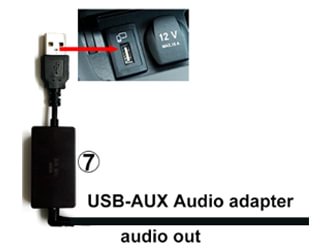
2.For UGODE Mercedes Android screens without dual Bluetooth functionality, a “USB-Aux audio adapter” is required to output sound when installing the NTG5.0/5.1/5.2 system; this accessory can be found in the packaging box.
Note: Some vehicle models have two USB ports. One port is for charging only and cannot read data, while the other USB port can read data. Be sure to plug into the port that supports data transfer.
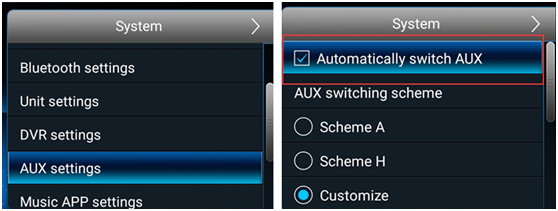
Automatic modes:
setup Routes :
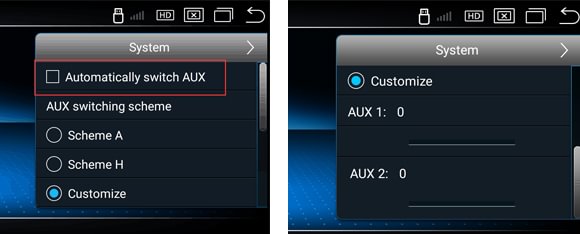
① Setting->System->AUX setting->Check “Automatically switch AUX”
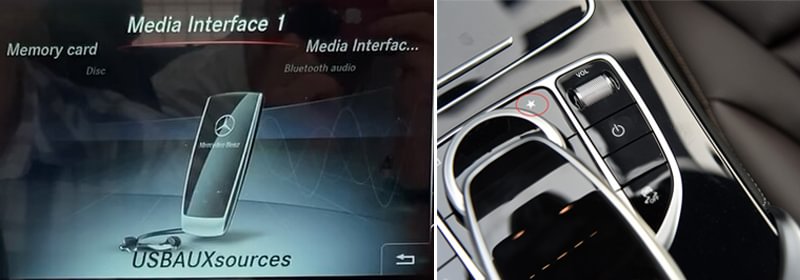
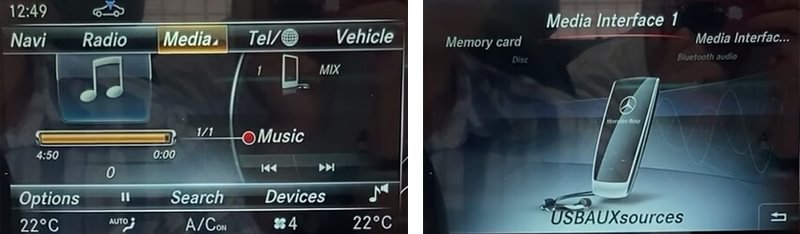
②Go to the NTG media menu, Check if the Media menu has a “USB AUX” icon (if not, check the connection of the “USB-Aux Audio Adapter” Click to view details.);
Long press ”*” button to enter “select slot” menu
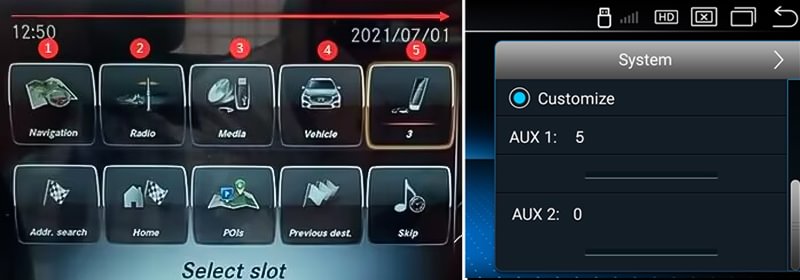
In the example below, the “USB AUX” position is ”5″(you can change position of ‘USB AUX’ as you want, and value will also change), so set “AUX Position 1″ as ”5″ and “AUX Position 2″ as ”0″
(Route: Setting->System->AUX setting)
Manual modes:
setup Routes :
① Setting->System->AUX setting->Uncheck “Automatically switch AUX”, and set AUX Position as ”0″ and ”0″
(Route: Setting->System->AUX setting), then go to NTG menu and Choose “USB AUX”, touch screen to android system, sound out.
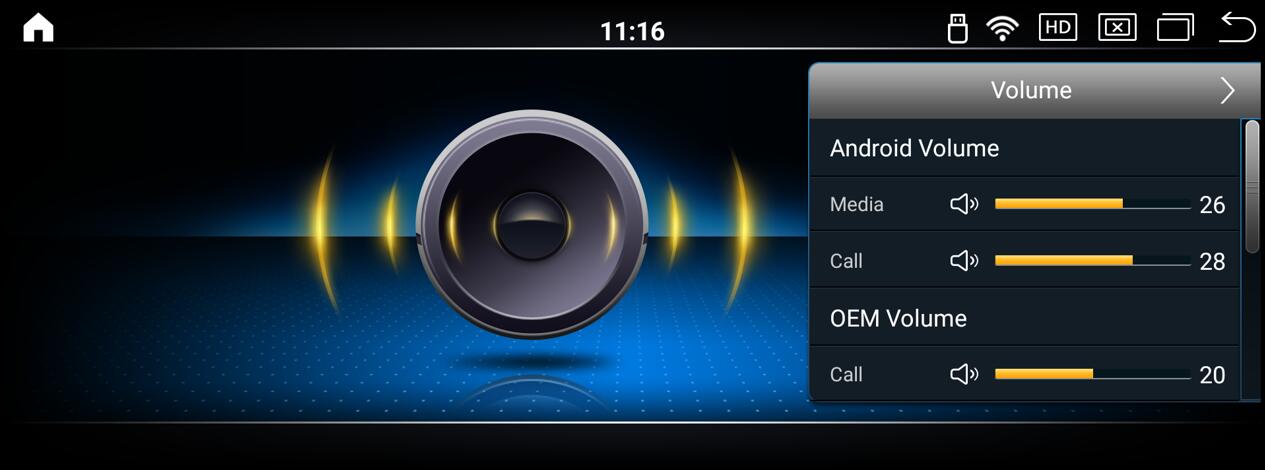
Checking the volume value of the Android system
NOTE:
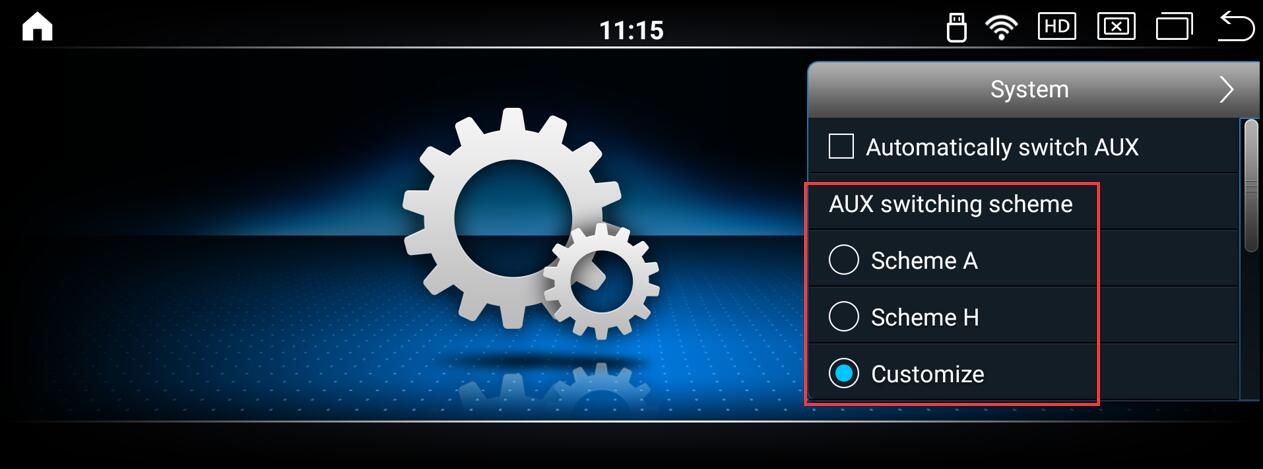
“AUX Switching scheme” is Amplifier selection, “Scheme A” is for ” Alpine “, “Scheme H” is for “Harman “, “Customize” is for other brand, Choose it according to head unit brand
Post time: Dec-02-2025