

Some customers have purchased the UGODE Mercedes-Benz, BMW, and Audi Android screens with wireless CARPLAY and Android AUTO functionality, but are unsure how to use the split-screen feature.
Below is a guide on how to use the split-screen function.
Note: The UI of UGODE’s Mercedes-Benz, BMW, and Audi Android screens differs, but the usage method remains the same.
The following example uses the Mercedes-Benz Android screen:
1.On the main interface, click the “Multitasking Key” icon in the upper right corner.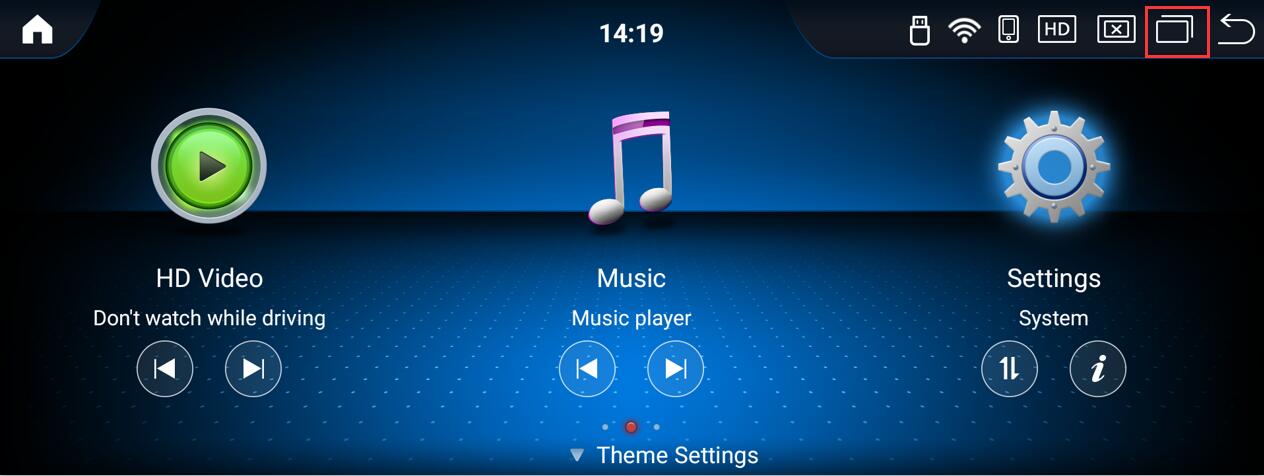
2. Click the video APP icon and select “Split left” or “Split right” in the pop-up window.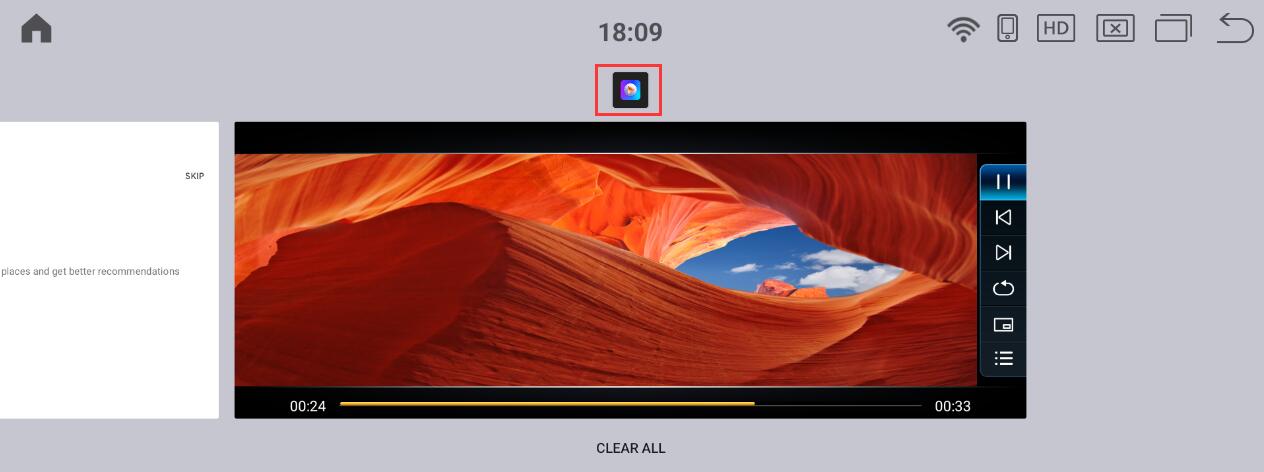
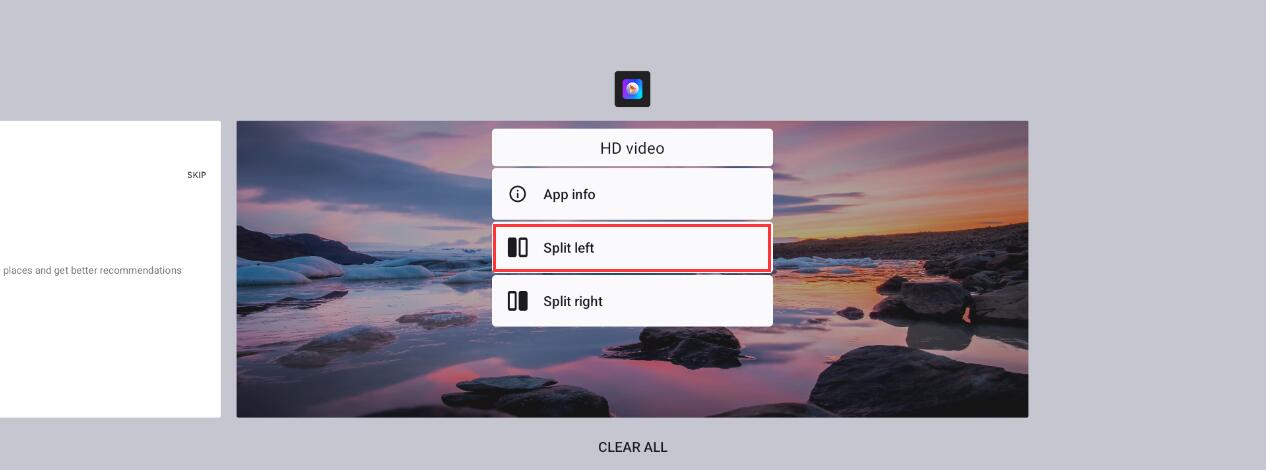
3.The Video app appears on the left side of the screen, and tapping the Navigation app again enables split-screen display.
Note: The operation method for other applications to achieve split-screen display is the same.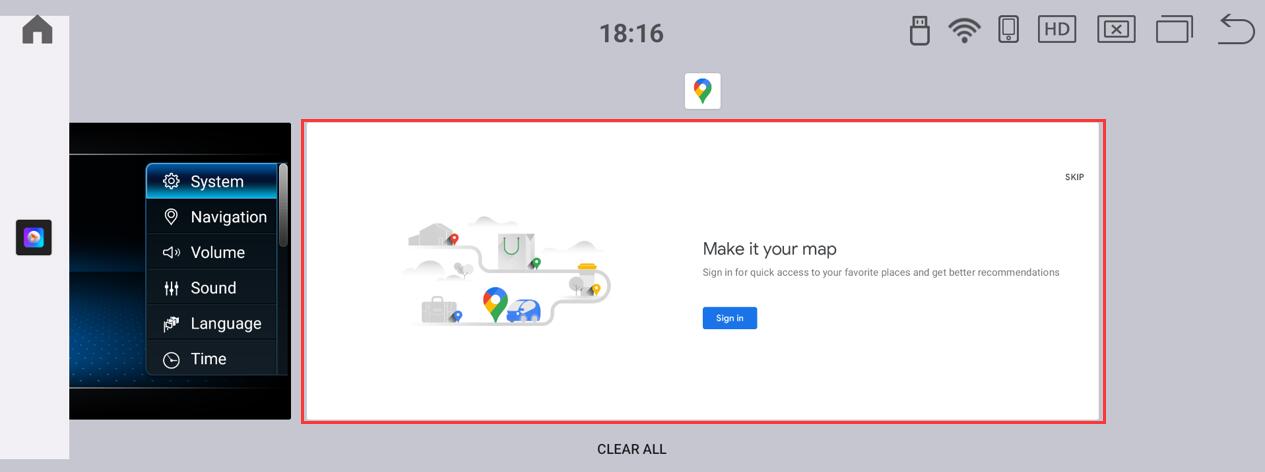
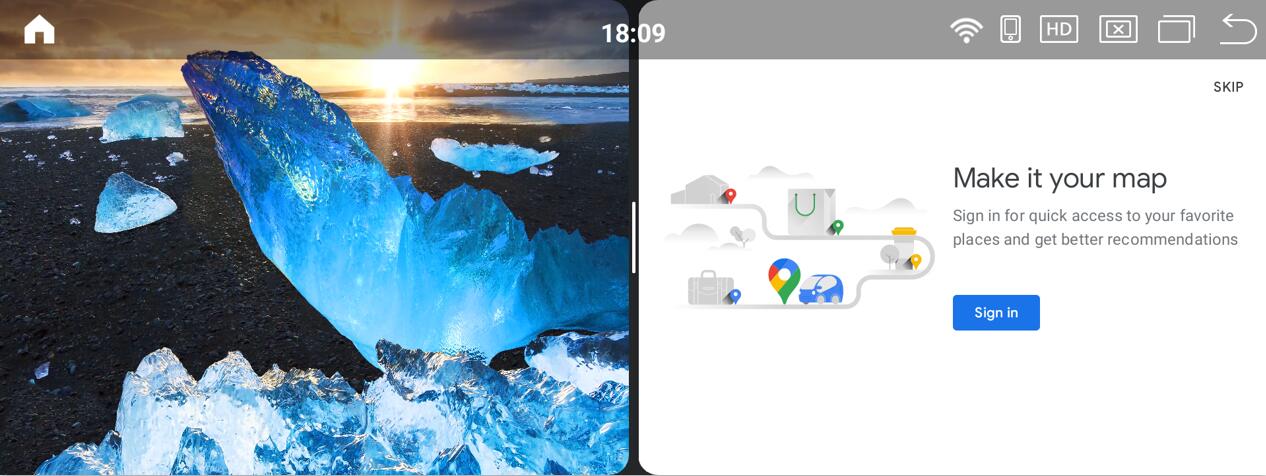
4. To exit split-screen mode, swipe left or right along the white divider line in the center of the screen, or tap the “Back” button in the upper-right corner.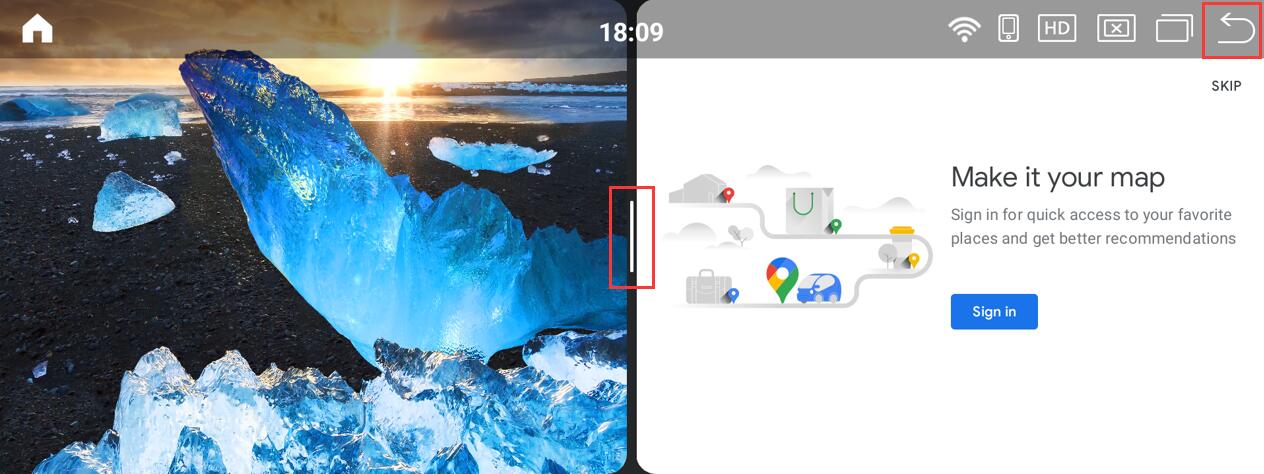
Note: Some apps do not support split-screen display, such as Carplay and Android Auto.
Post time: Jan-06-2026