

Some customers have purchased the UGODE Android screen with wireless CarPlay and Android Auto functionality. After inserting a 4G SIM card, the screen displays full signal bars but cannot connect to the internet.
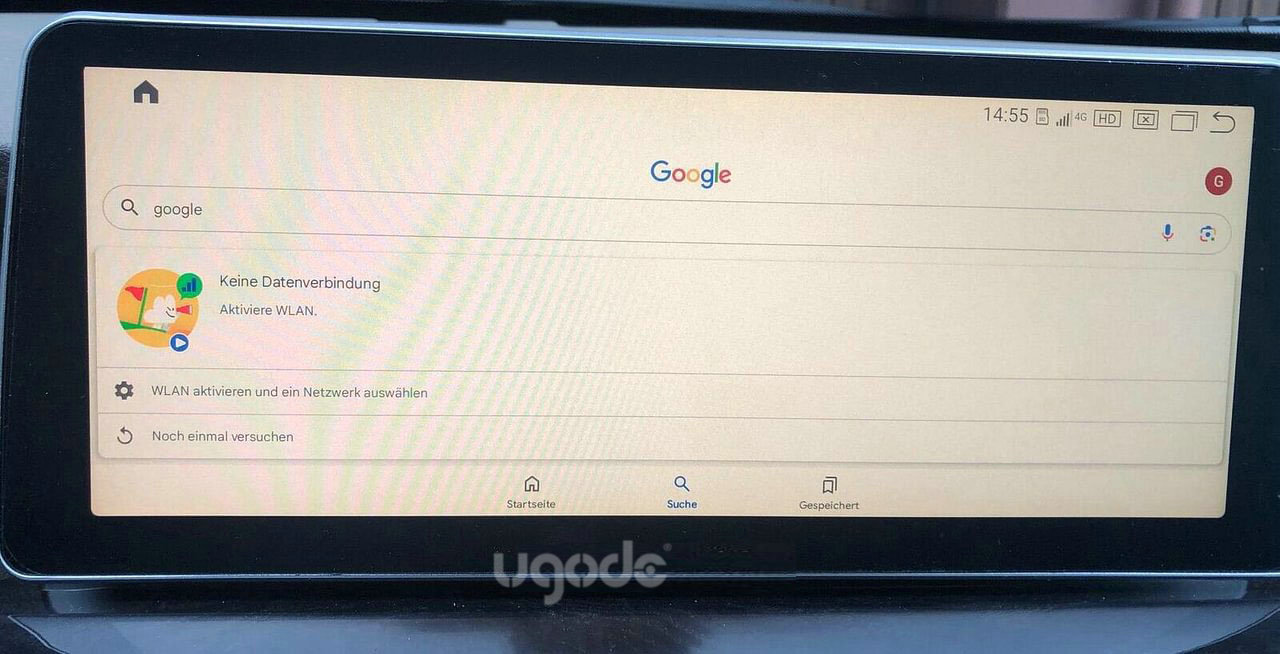
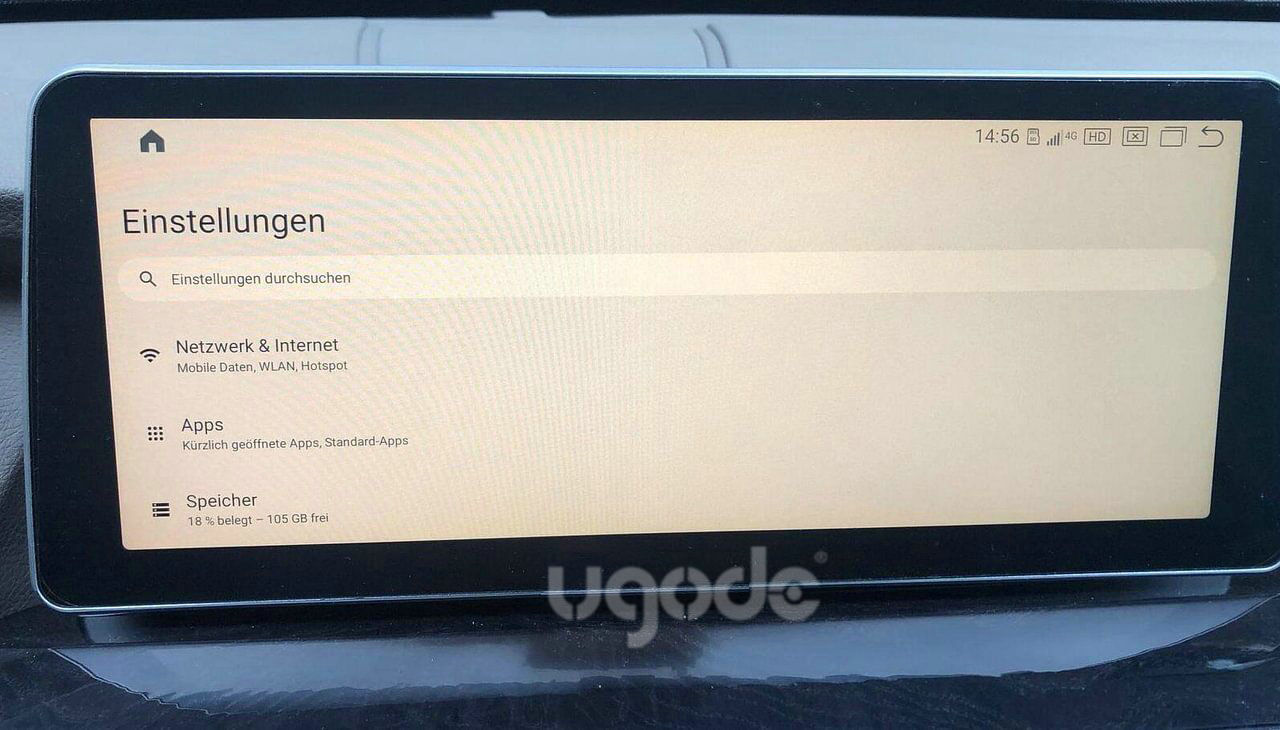
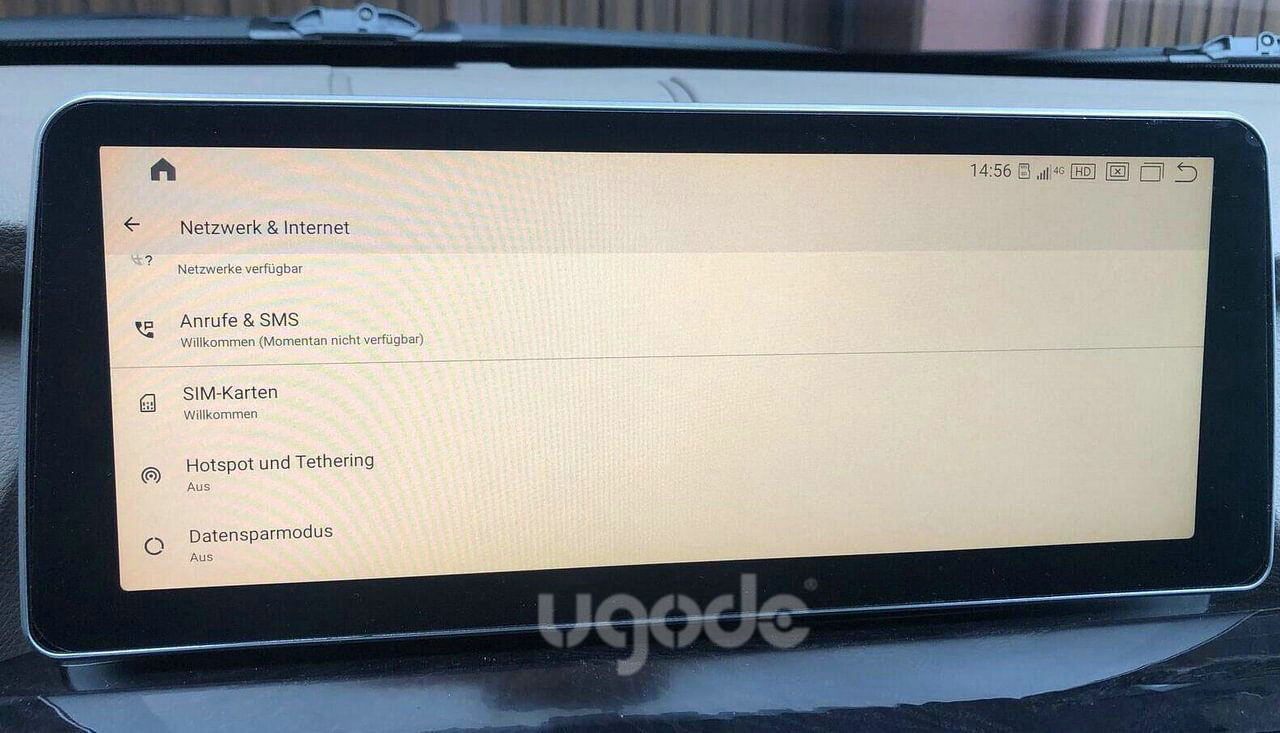
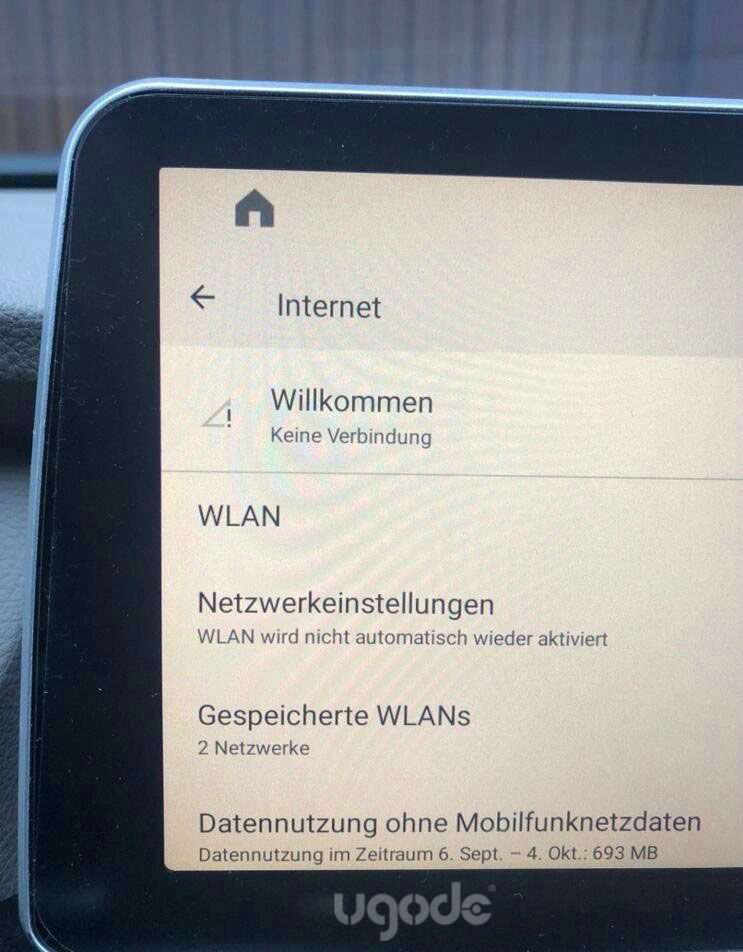
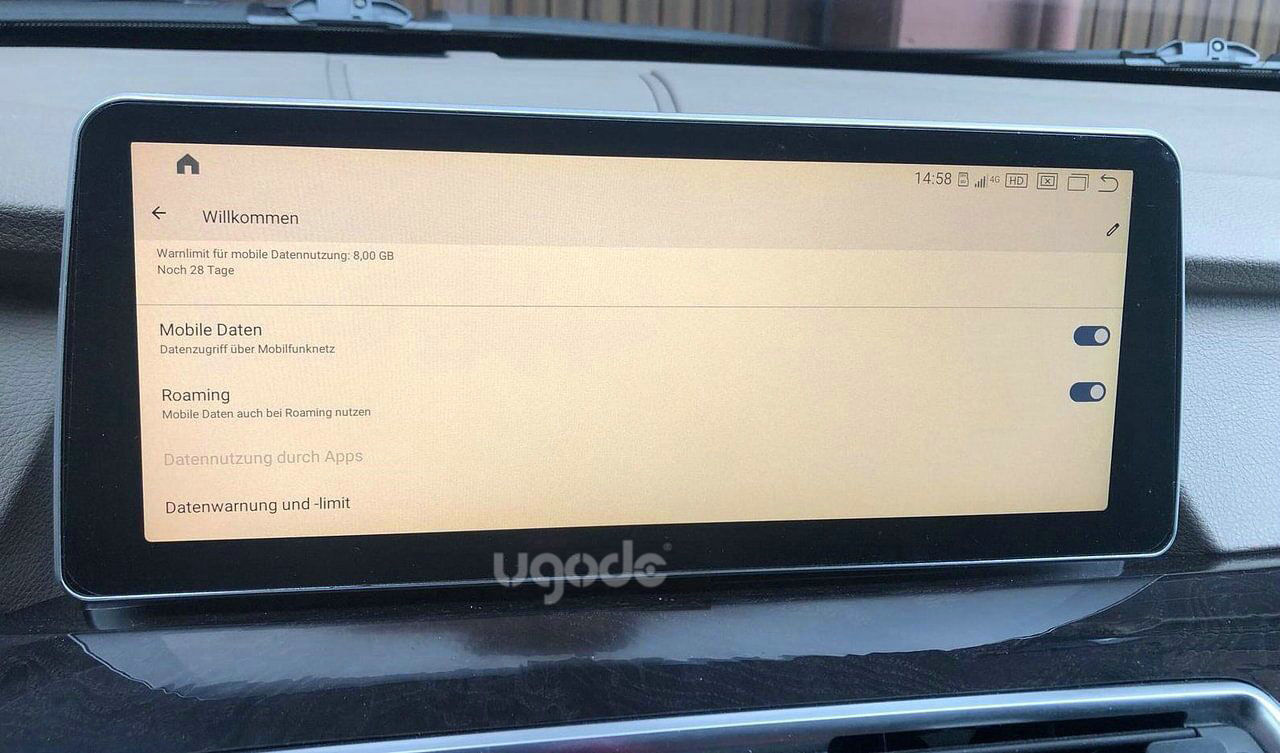
There are several reasons why you cannot access the network:
1.Some customers have set a PIN code on their 4G SIM card, which makes it impossible to access the network. In this case, you need to insert the 4G SIM into another device to cancel the PIN code (you can insert the SIM card into the phone to cancel it). After canceling the PIN code, insert the SIM card into the Android screen to access the network.
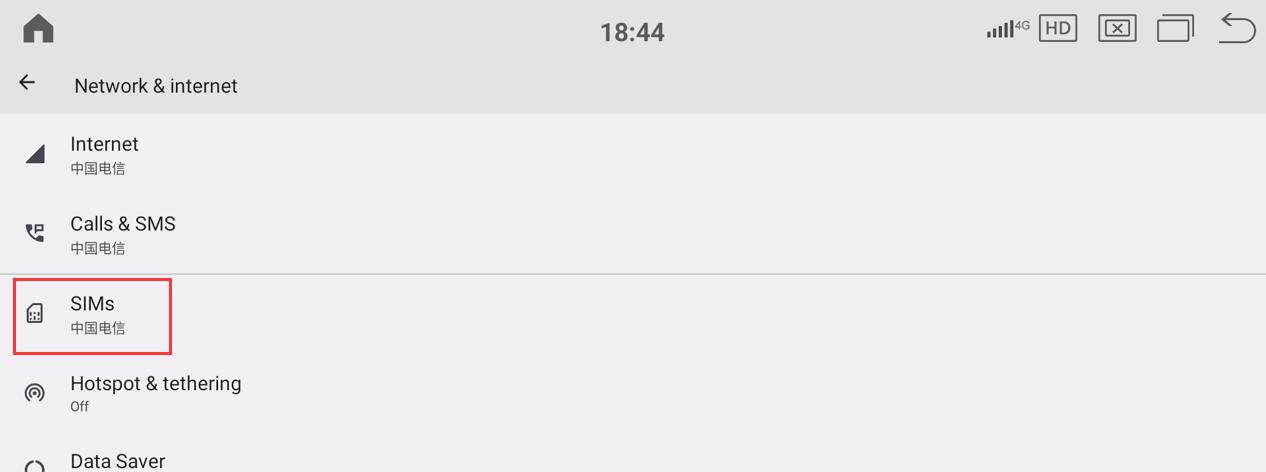
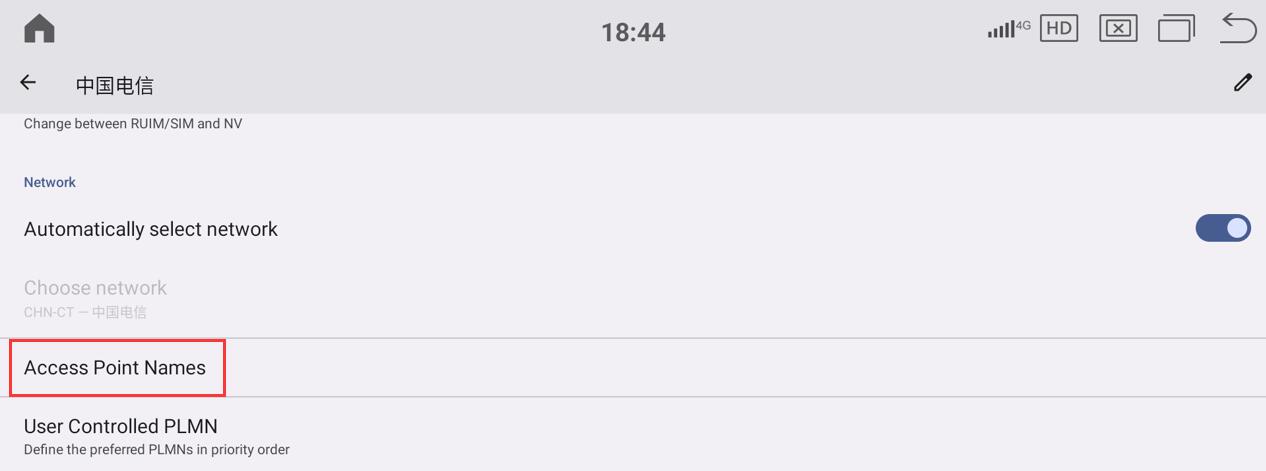
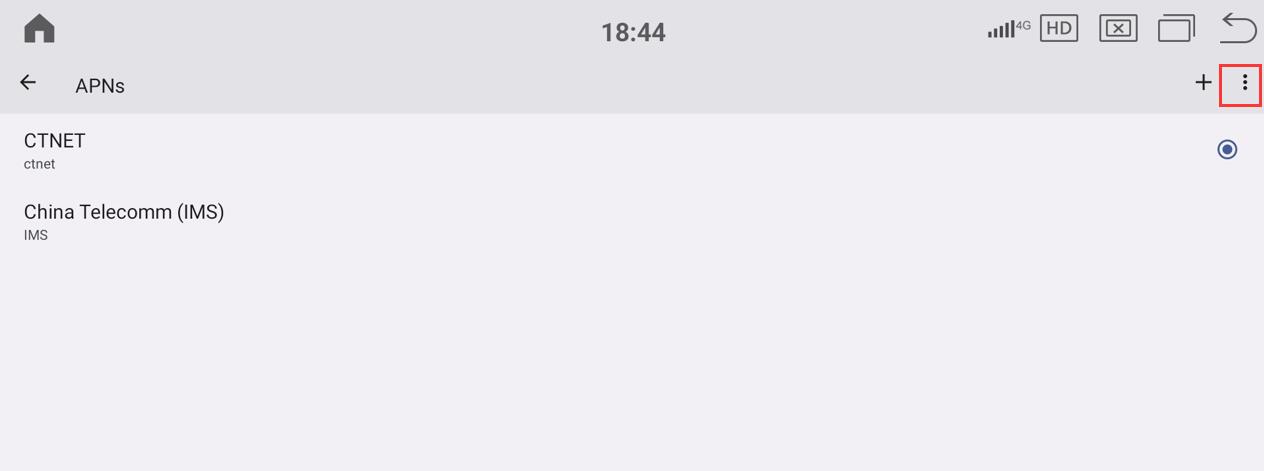
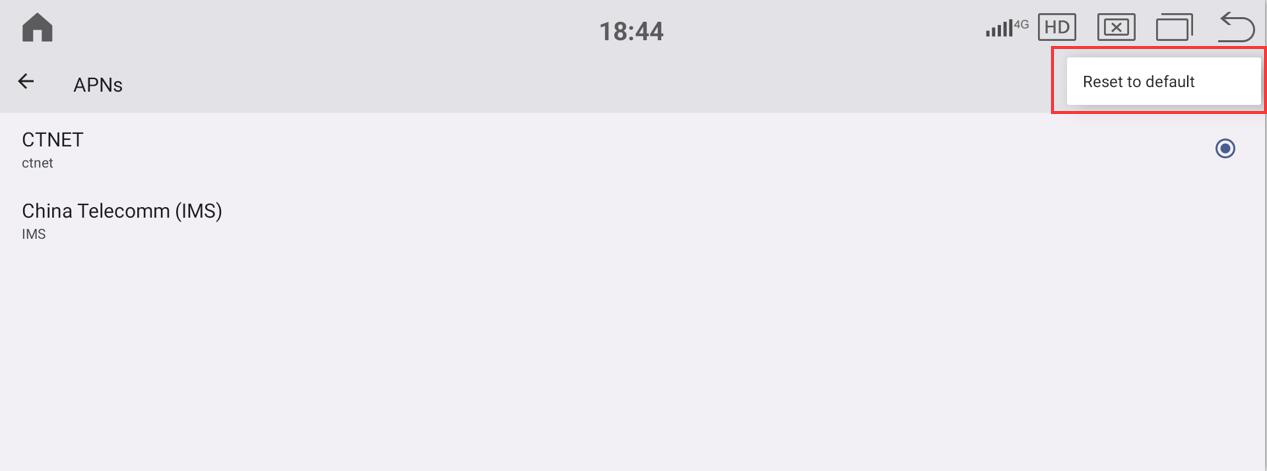
2.You can try resetting the APN network.
Routes:Apps-Settings-Network & internet-SIMs-Access Point Names-Reset to default
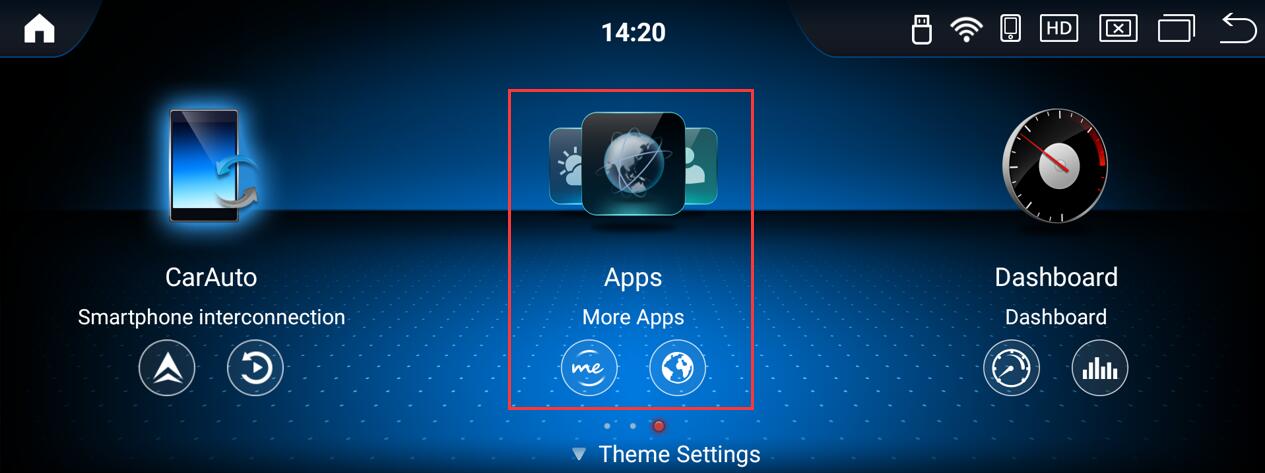
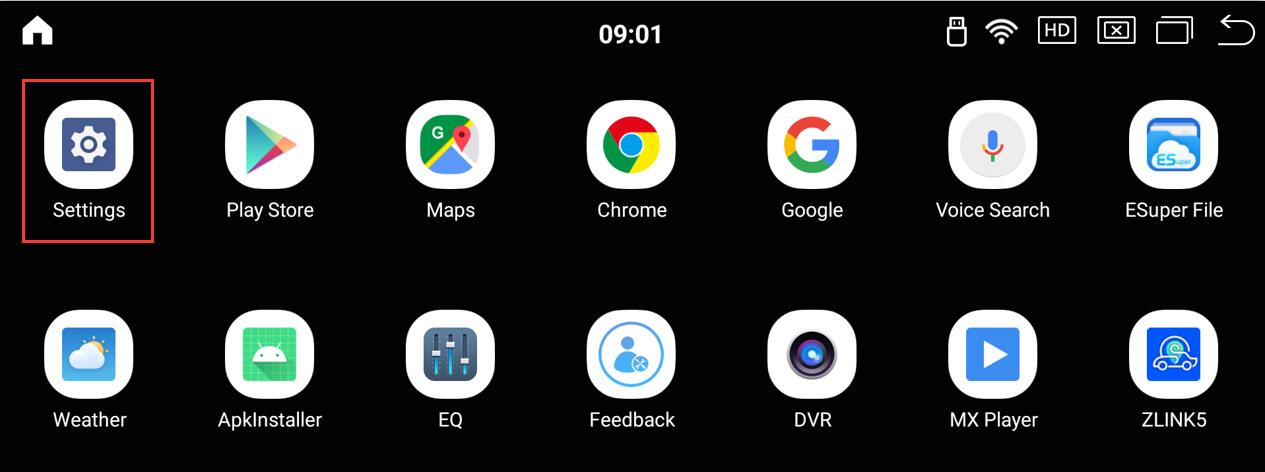
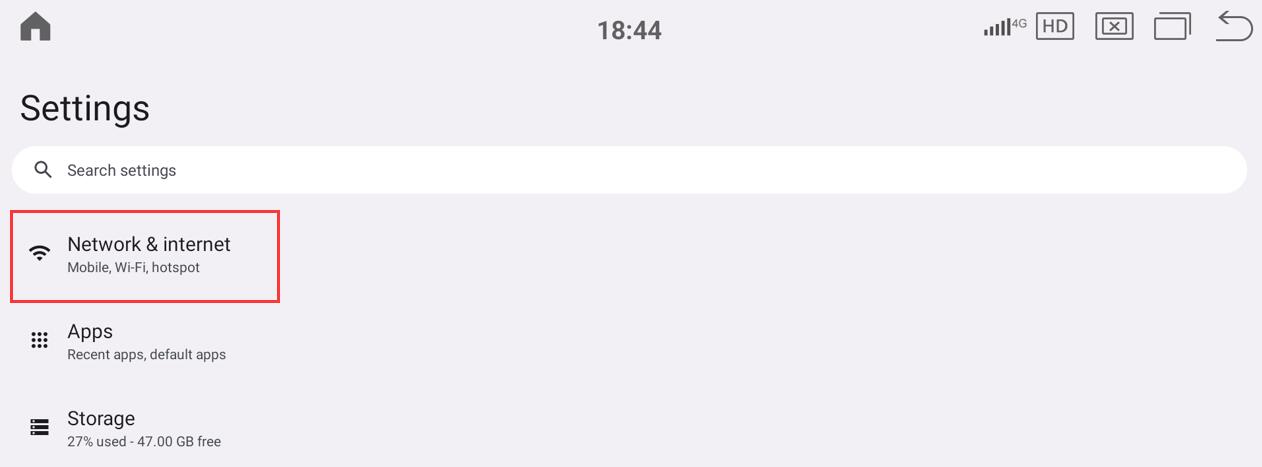
3.Some operators’ SIM cards are special and require manual APN settings.
Routes:Apps-Settings-Network & internet-SIMs-Access Point Names(Click “+” in the upper right corner to add)
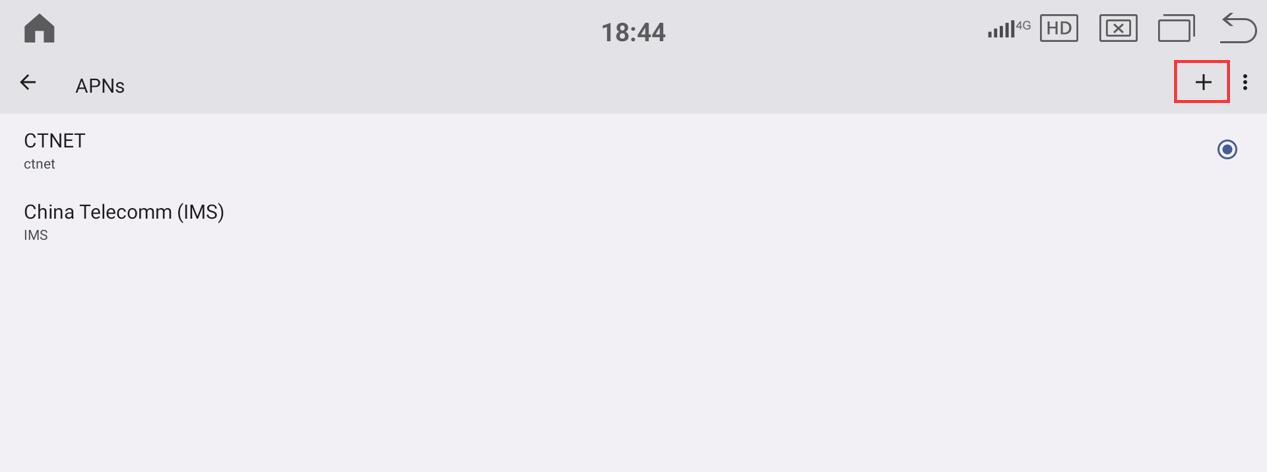
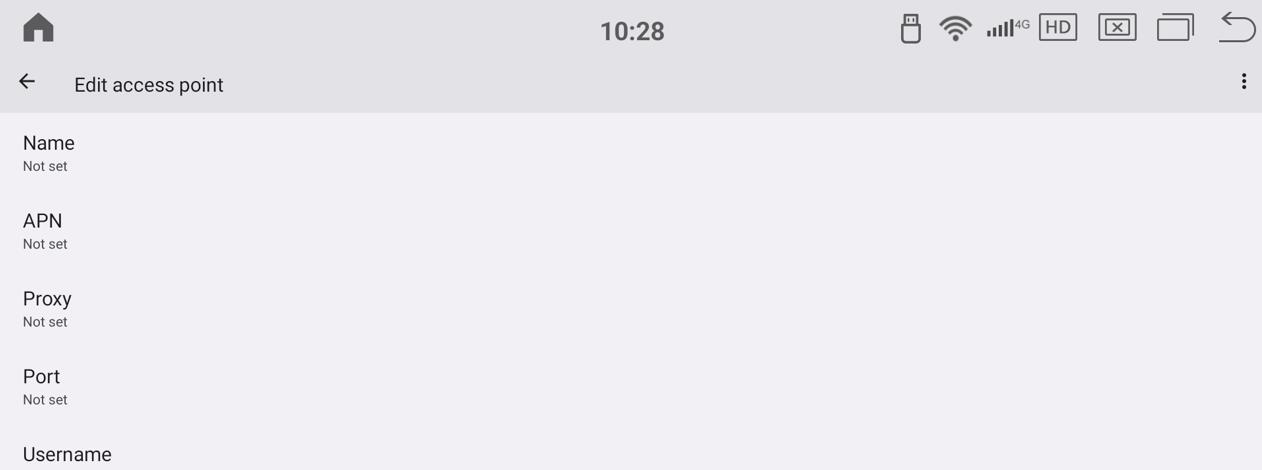
Note: (1)In the Edit access point interface, except for the name, all other contents must be filled in according to the information provided by the operator and cannot be filled in randomly.
(2)You can insert the SIM card into another device that can access the network, view the access point information, write it down, and then fill it in on the Android screen.
After completing Edit access point, you need to save it.
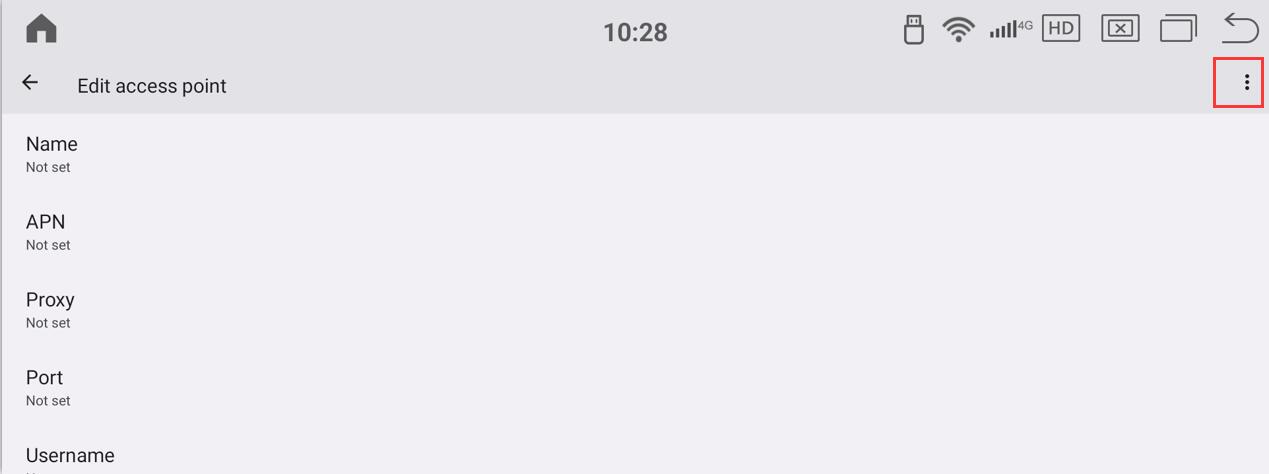
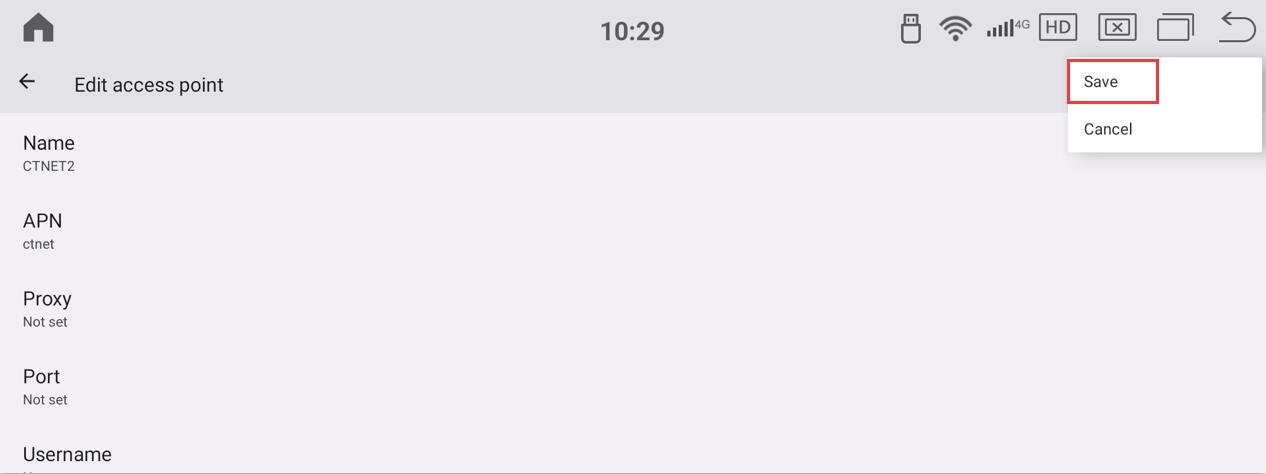
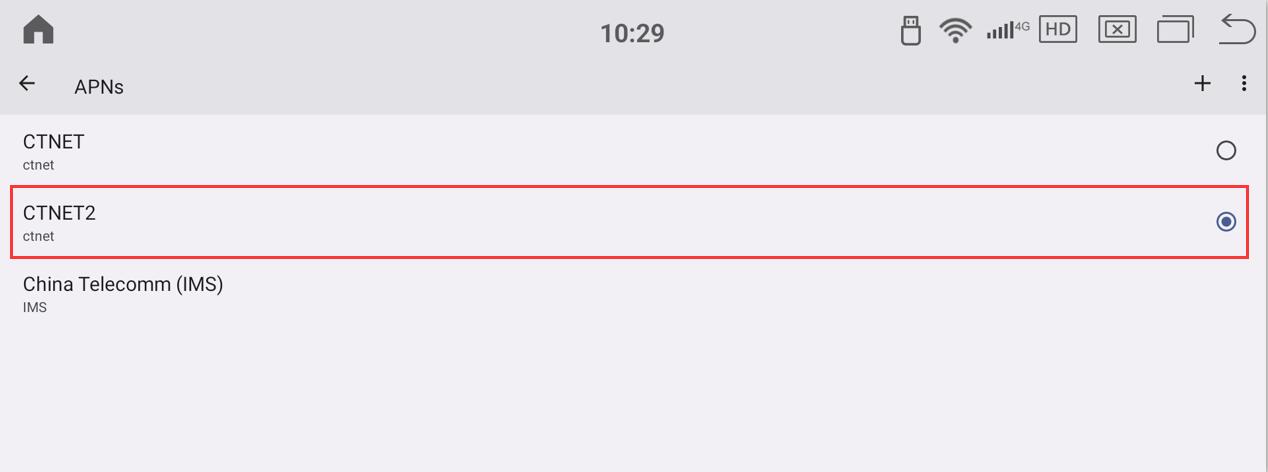
After the settings are completed, there is no need to reset the Android screen.
Post time: Dec-02-2025