

Some customers have purchased BMW EVO Android screens with wireless CarPlay and Android Auto functionality from UGODE. After installation, they are unsure how to use the dual Bluetooth feature.
Vehicles equipped with the BMW EVO system do not natively support AUX functionality. Earlier solutions relied on USB-to-AUX audio adapters to transmit audio from the Android screen. However, installing and wiring these adapters is quite cumbersome, and storing them in the glove compartment takes up valuable space.
UGODE’s BMW EVO Android head unit features dual Bluetooth, allowing Android audio to be transmitted via Bluetooth to the original CD head unit, greatly simplifying the installation process.
Note: Only Android head units in the MCU version marked with “MPb” support Bluetooth transmission.
How to view Android version information.
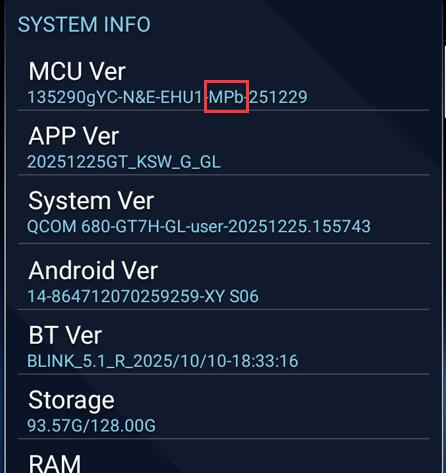
Instructions for Using Dual Bluetooth:
1.Enter Android Factory Mode and ensure Bluetooth transmission is enabled.
Route:Settings-Factory(Password: 2018 or 1314)-Function 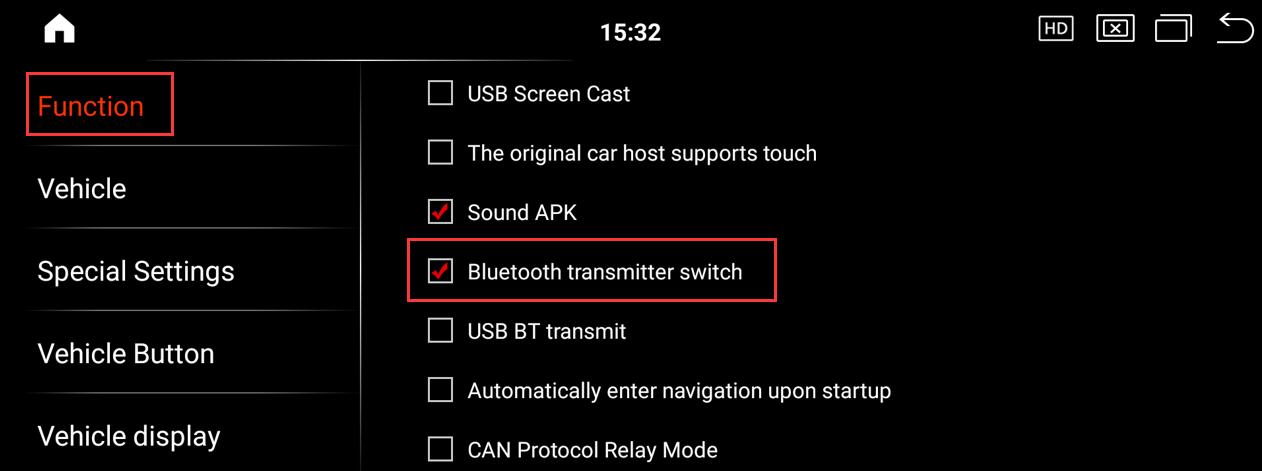
2.Go to the original vehicle interface., select Media > Bluetooth Audio > Connect New Mobile Device, tap the “Bluetooth” icon in the upper-right corner of the screen, then tap Search. Once you find the BMW Bluetooth device, pair and connect to it.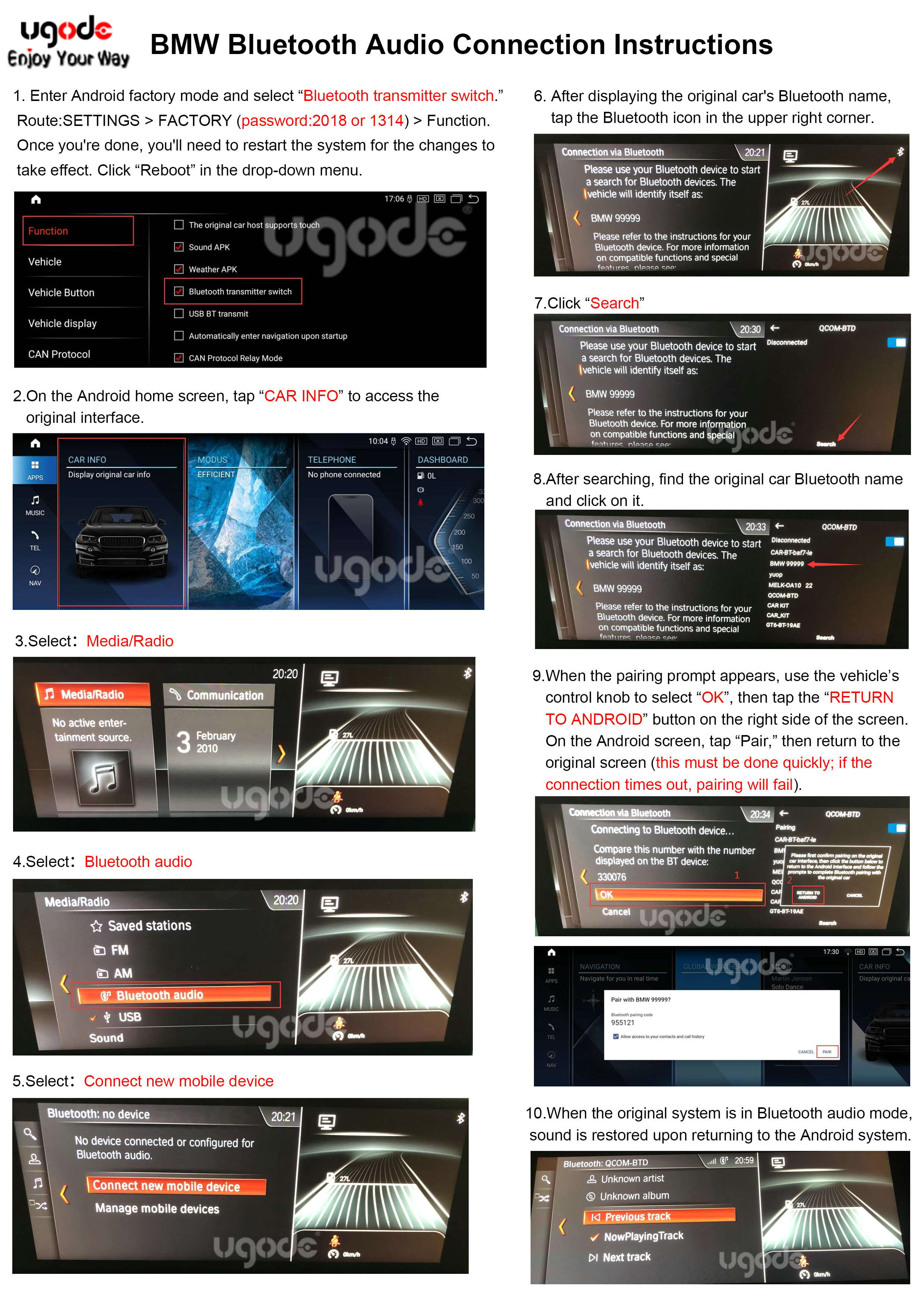
Video operation guide. https://youtu.be/Ts05I2fAd3c
Note: The BMW EVO factory Bluetooth system supports Bluetooth music playback, and audio can be transmitted via Bluetooth.
For vehicles equipped with BMW CCC/CIC/NBT systems, audio should still be transmitted via the AUX channel.
Post time: May-20-2026