

Some customers have purchased the Mercedes NTG5 and BMW EVO Android screens from UGODE, featuring wireless CarPlay and Android Auto functionality. After installation, they are unsure how to use the Bluetooth transmission feature.
Vehicles equipped with Mercedes-Benz NTG5 and BMW EVO systems originally lacked AUX functionality. Early solutions relied on USB-AUX audio adapters to transmit audio from Android screens. However, installing and routing these adapters proved cumbersome, and storing them in the glove compartment consumed valuable space. UGODE’s latest Android screens now utilize Bluetooth transmission for audio, significantly streamlining the installation process.
Note: Only Android screens with the “MPb” designation in the MCU version support Bluetooth transmission functionality.
How to view Android version information.
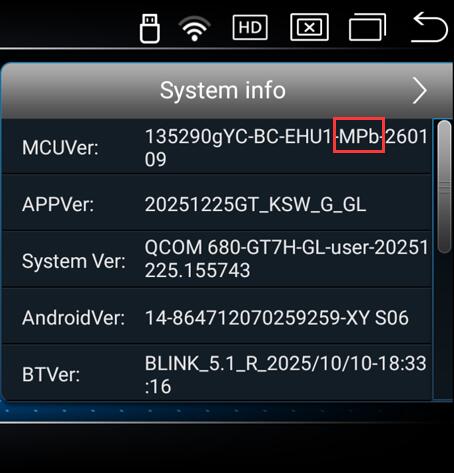
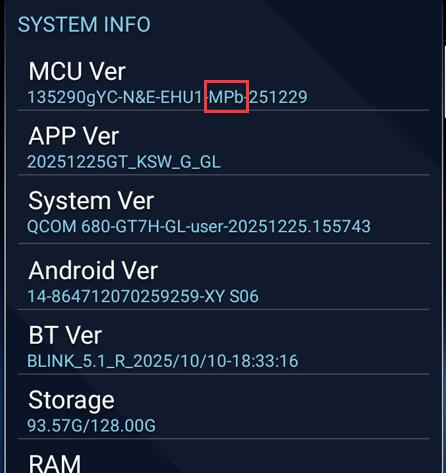
Bluetooth Transmitter Usage Instructions:
1. Enter Android Factory Mode and ensure Bluetooth transmission is enabled.
Route:Settings-Factory(Password: 2018)-Function 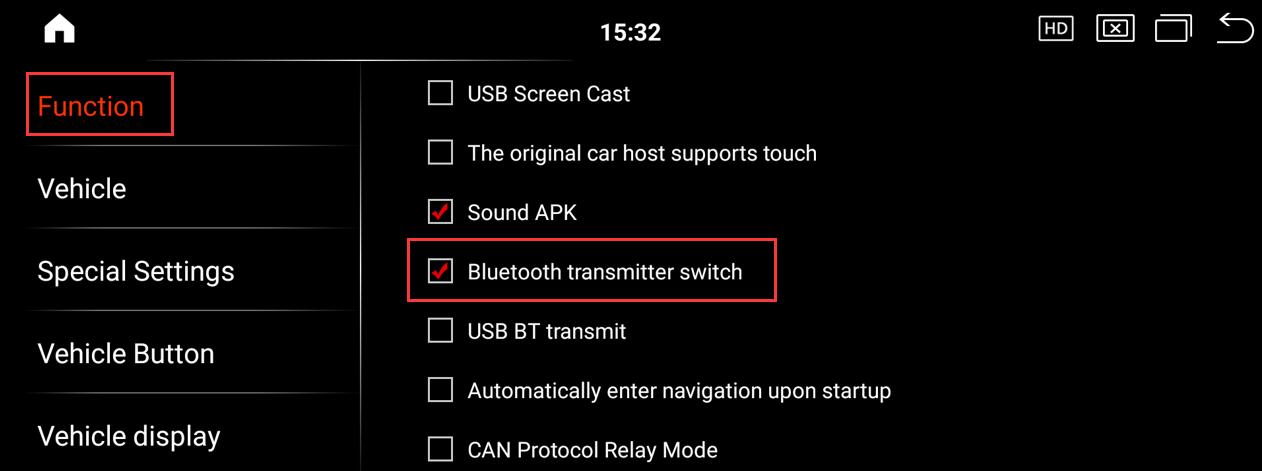
2. Go to Android Settings and check the Bluetooth transmitter name (default: QCOM-BTD).
Route:Apps-Settings-Connected devices-Pair new device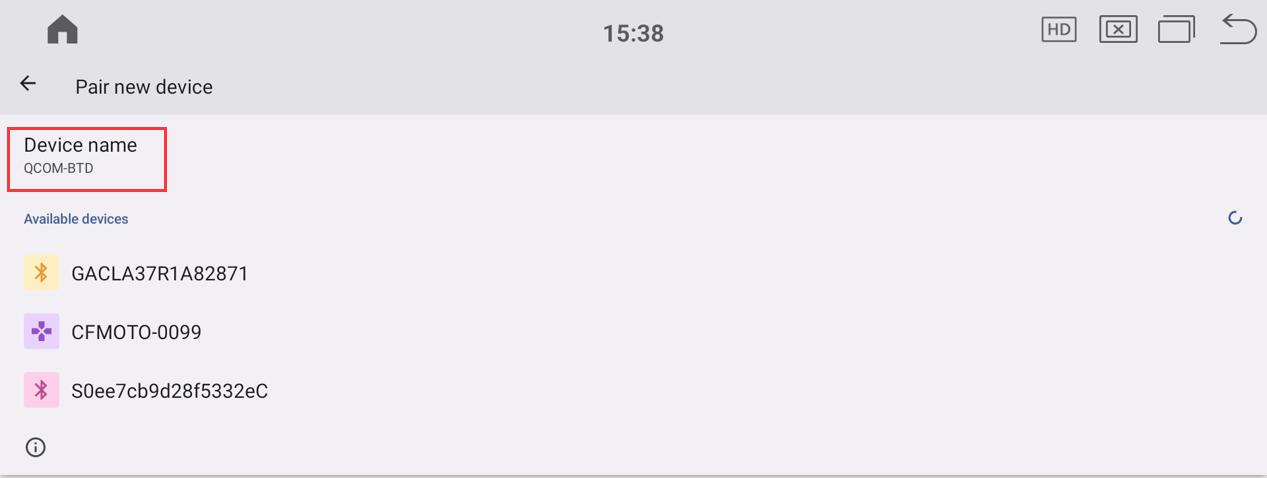
3. Enter the original Bluetooth interface, search for “QCOM-BTD” to pair and connect. After successful connection, enter the original Bluetooth music interface, then return to Android to play music and you will have sound.
Note: Vehicles with Mercedes-Benz NTG5/NTG6 and BMW EVO original Bluetooth systems that support Bluetooth music playback can utilize the Bluetooth transmitter function.
For vehicles with other systems, audio transmission should still be conducted via the AUX channel.
Post time: Jan-27-2026