

Some customers who purchased the UGODE Android screen with wireless CarPlay and Android Auto functionality have reported that the reverse view does not switch during reversing after installation. Others can switch to the reverse view on the original vehicle interface but cannot do so on the Android interface.
The above problems are related to installation and settings.
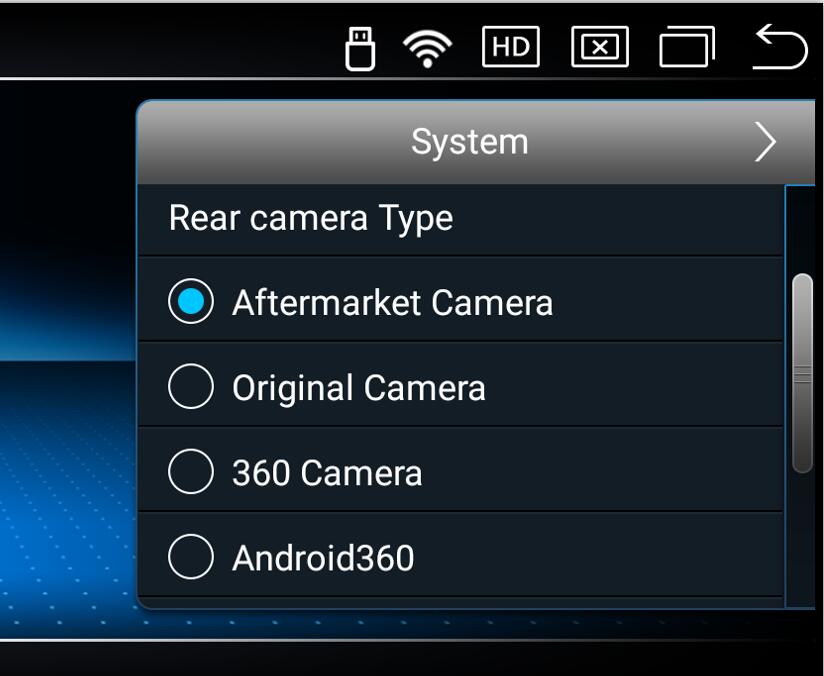
1.Please make sure your car is equipped with a reversing camera or a subsequent retrofitted reversing camera.
If it was retrofitted, please select: Aftermarket Camera,
If your car comes with a reversing camera, please select: Original Camera.
Routes:Settings-System-Reversing settings
2.Check if the CAN protocol selection in Android factory mode is correct.
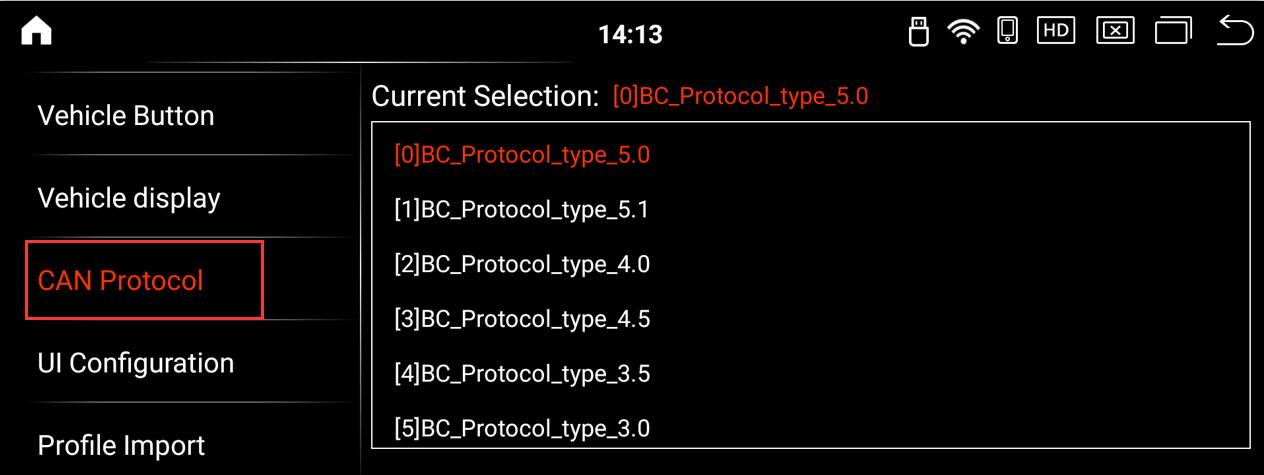
For vehicles with NTG 3.0 system, please select: 3.0
For vehicles with NTG 3.5 system, please select: 3.5
For vehicles with NTG 4.0 system, please select: 4.0
For vehicles with NTG 5.5/6.0 system, please select: 5.5
For vehicles with NTG 5 system:
Mercedes-Benz C-Class, GLC, V-Class, X-Class select 0 item: 5.0
Mercedes-Benz A-Class, CLA, GLA, G-Class, E-Class, CLS, B-Class, SLK, GLE, GLS choose 1 item: 5.1
Routes:Settings-Factory(Key:2018)-CAN Protocol
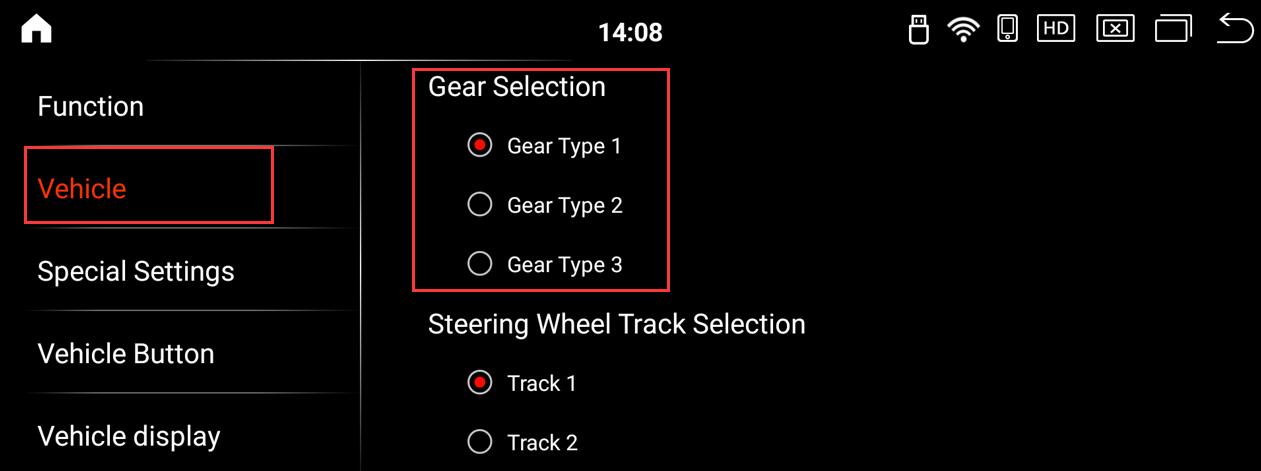
3.Enter Android factory mode, select gear 2 or 3, and try it.
Routes:Settings-Factory(Key:2018)-Vehicle-Gear Selection
4.If all the above options are done and it still doesn’t work, please check the fiber optic.
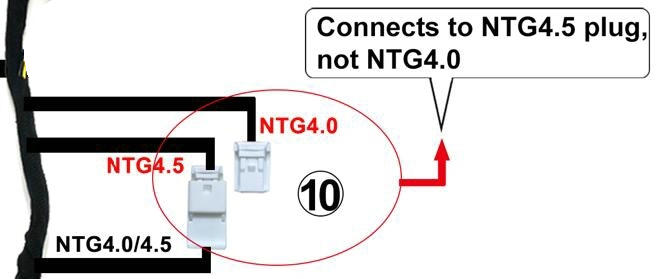
5.For the NTG4.0 screen, the Android cable must be plugged into the NTG4.0 connector.
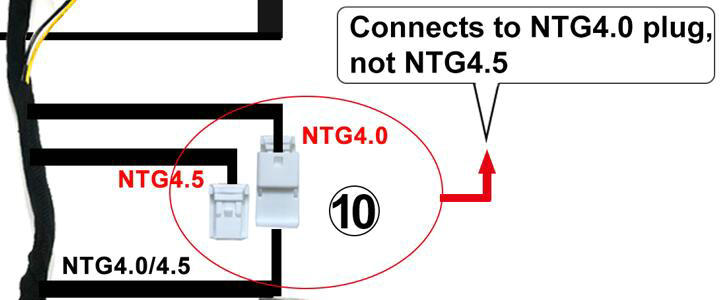
5.For the NTG4.5 screen, the Android cable must be plugged into the NTG4.5 connector.
Post time: Nov-25-2025