

Some customers who purchased the UGODE BMW Android screen found that after installation, the original system displayed “no signal” or showed abnormalities.
Note: BMW models feature different systems for each model year. Each system requires a specific Android screen for installation; otherwise, a “No Signal” error may occur.
How to identify BMW systems. Click to view details.
1.Check whether the original CD host is turned on and working properly.
1.1. Press the “FM/AM” button on the original car CD panel to see if you can hear the sound of the radio. If you can hear the sound of the radio, the original car host is working, so check the wiring.
1.2. If you can’t hear the sound of the radio, check whether the original car CD host is turned off by pressing the power button.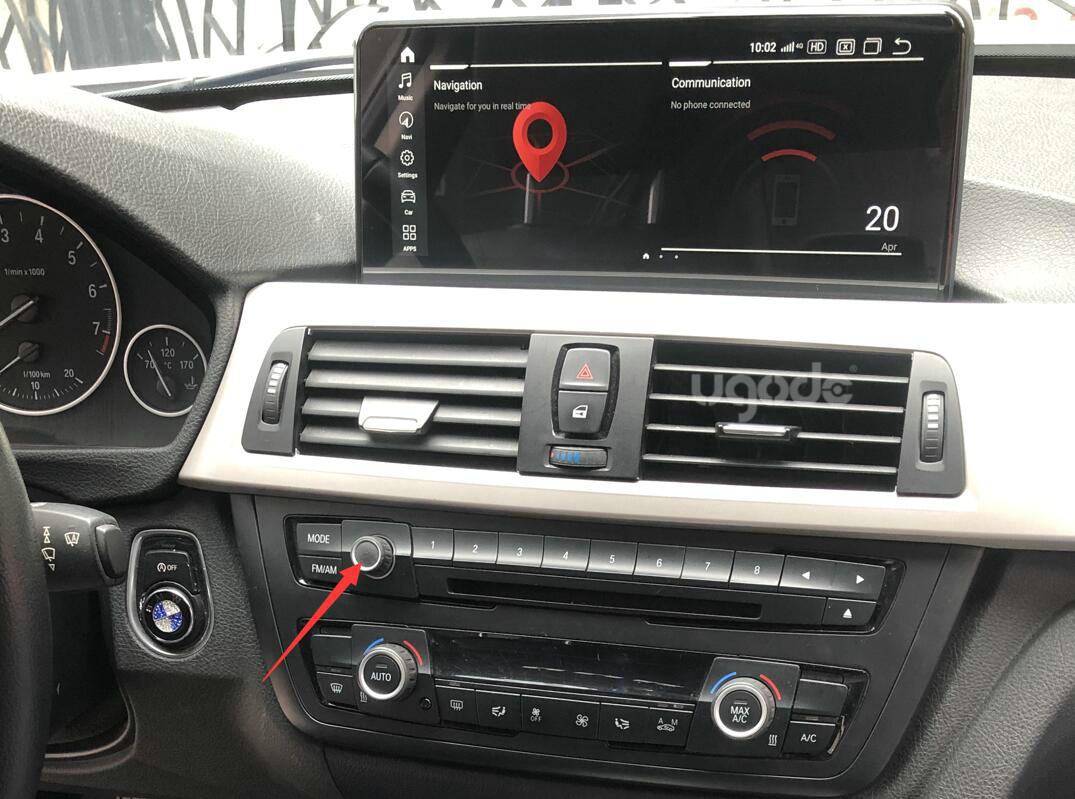
1.3.Check if the power cord on the back of the original car CD host is plugged in properly.
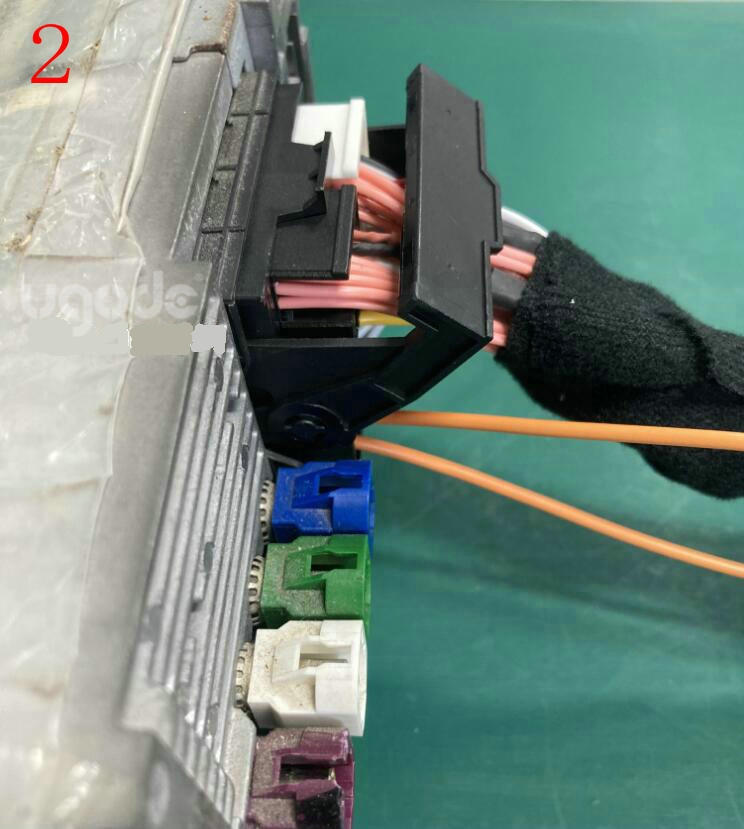
The correct way to plug in the cord is: open the buckle on the ISO male connector of the Android power cord about 45 degrees and then insert it into the original car CD host, and then tighten the buckle. The power cord cannot be pulled out after tightening.
The following is the correct demonstration: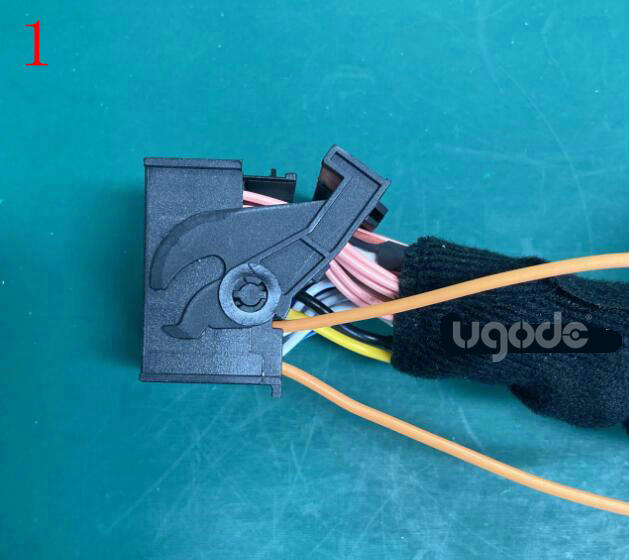
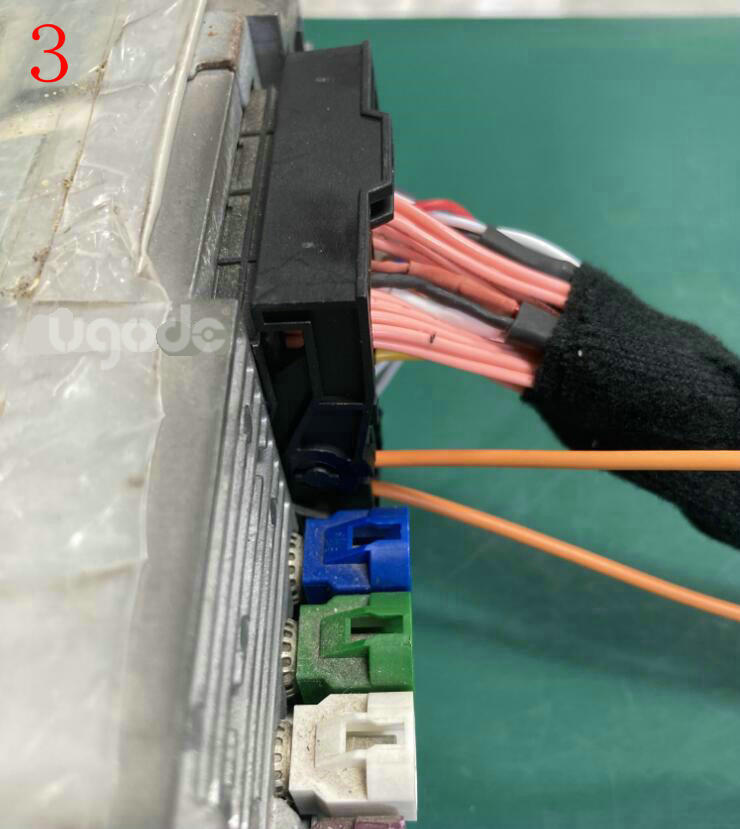
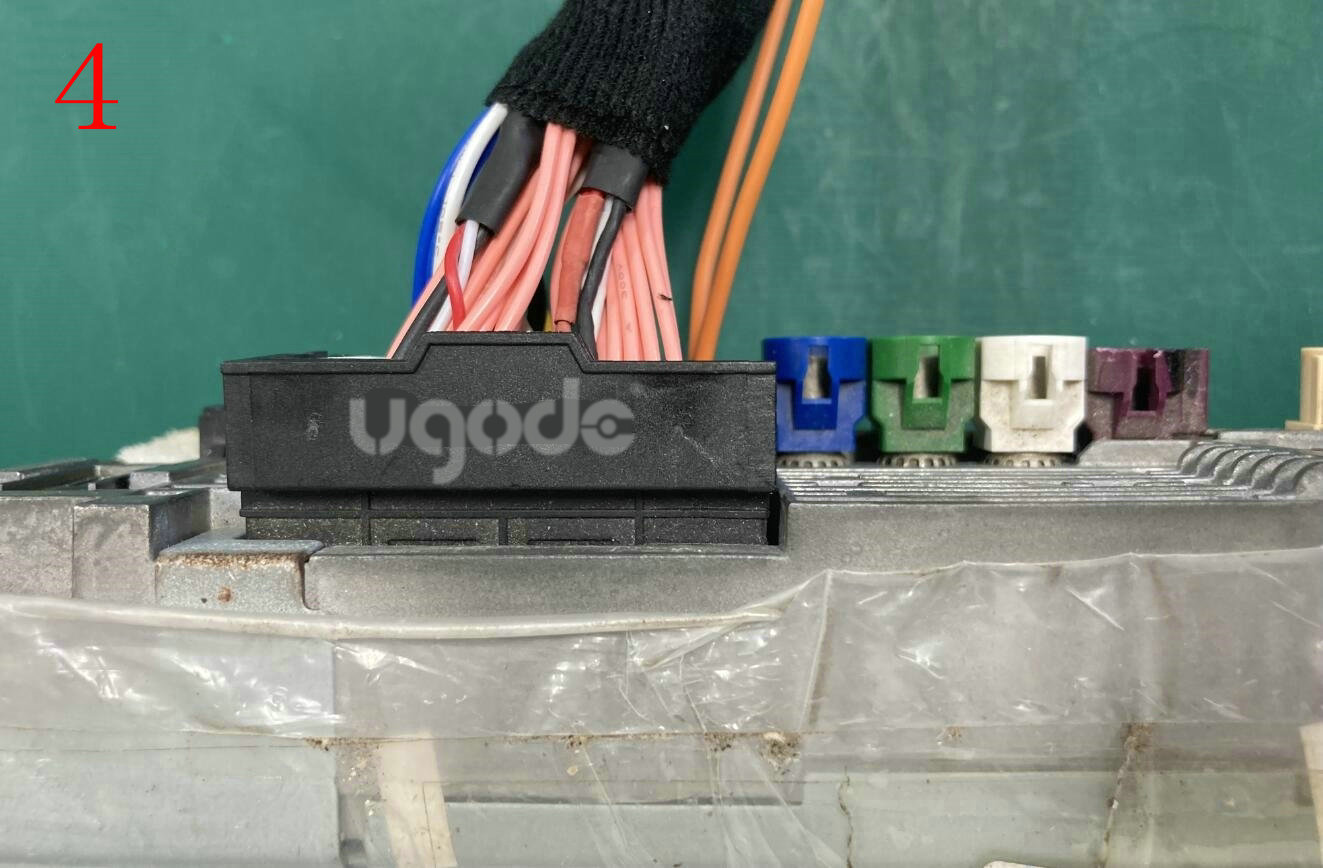
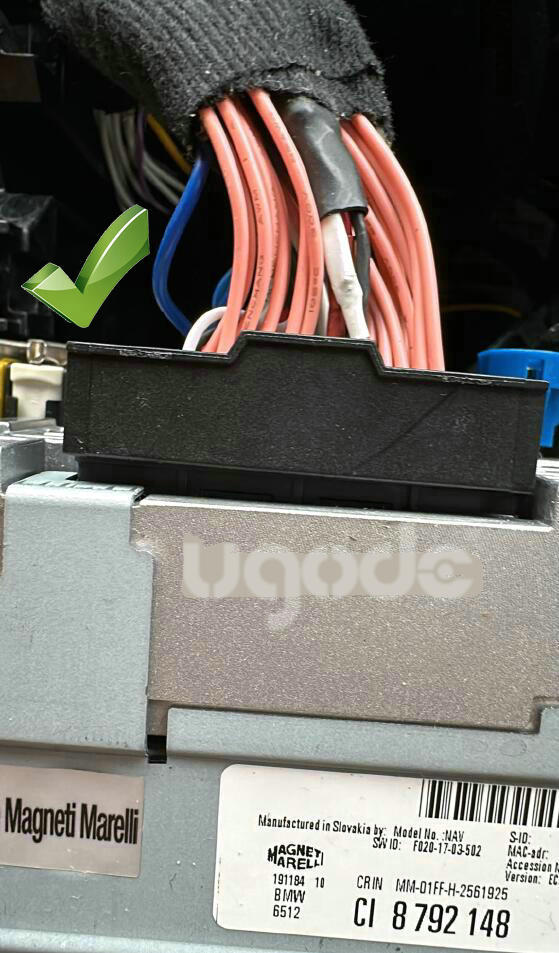
If the power cord is not plugged in properly, you can see a wide gap from the plug and the power cord can be pulled out.
The following is an example of an error: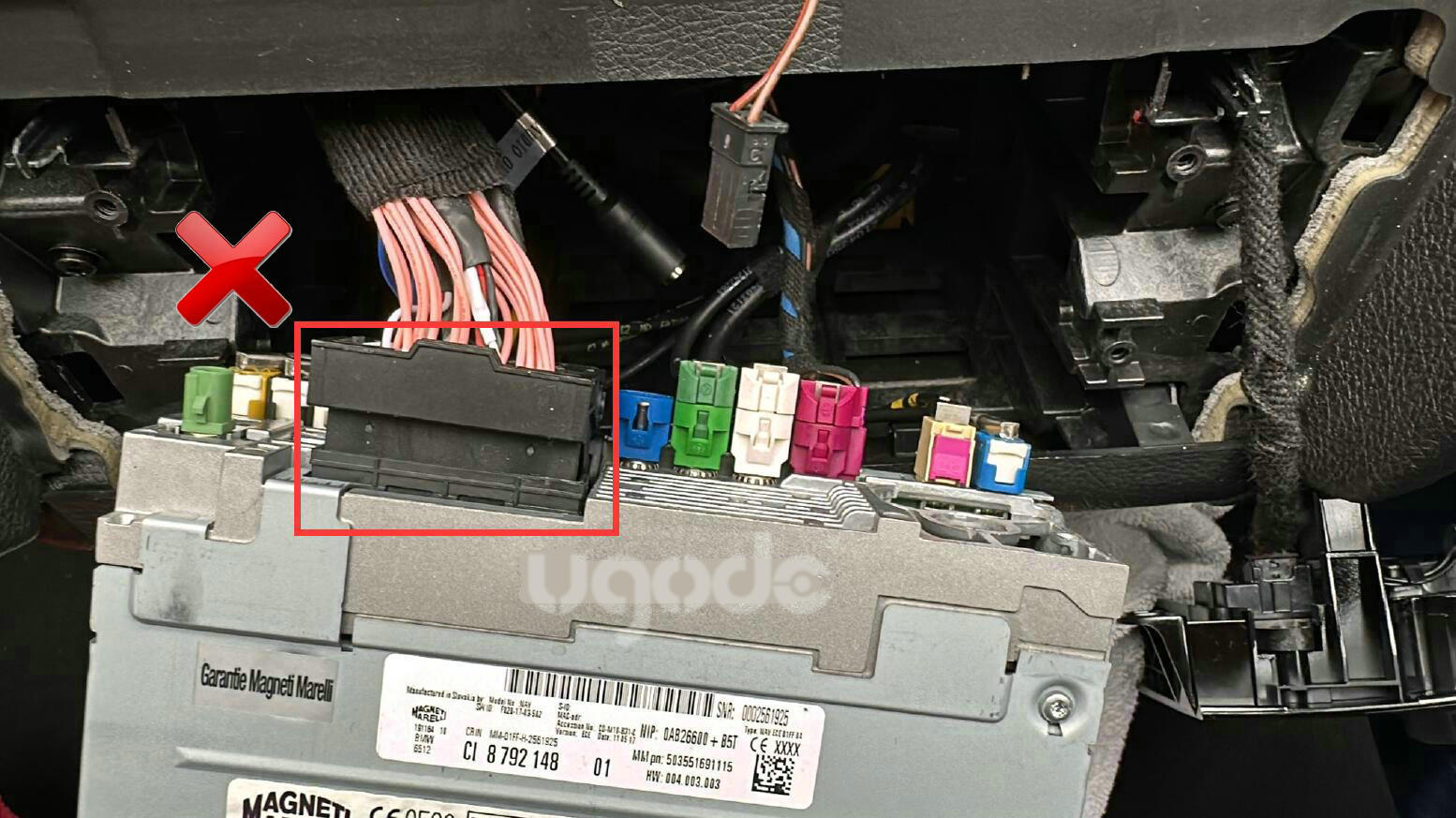
2. Check that the LVDS cable is correctly plugged into the UGODE Android screen.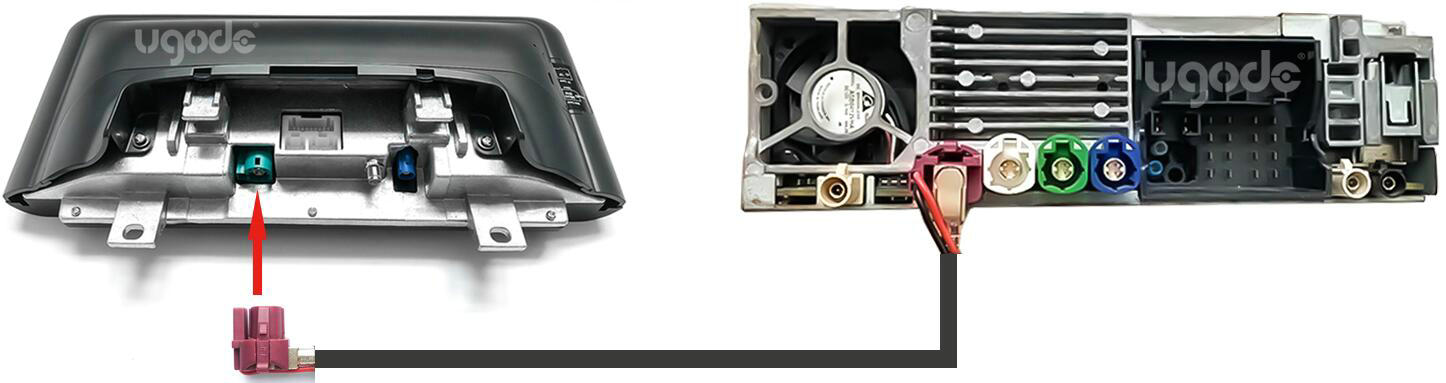
3.If your car has optic fiber(Ignore if no optic fiber), need to relocate it to android harnes. Click for details.
4.Enter Android factory mode to check if CAN Protocol selection is correct, please select the correct protocol according to the original radio system.
For vehicles with the CCC system, select: CCC
For vehicles with the CIC system, select: CIC
For vehicles with the NBT system, select: NBT
For vehicles with the EVO system, select: 1/2/3/4, trying each one until it works properly.
Routes:SETTINGS-FSCTORY (password: 2018)-CAN Protocol.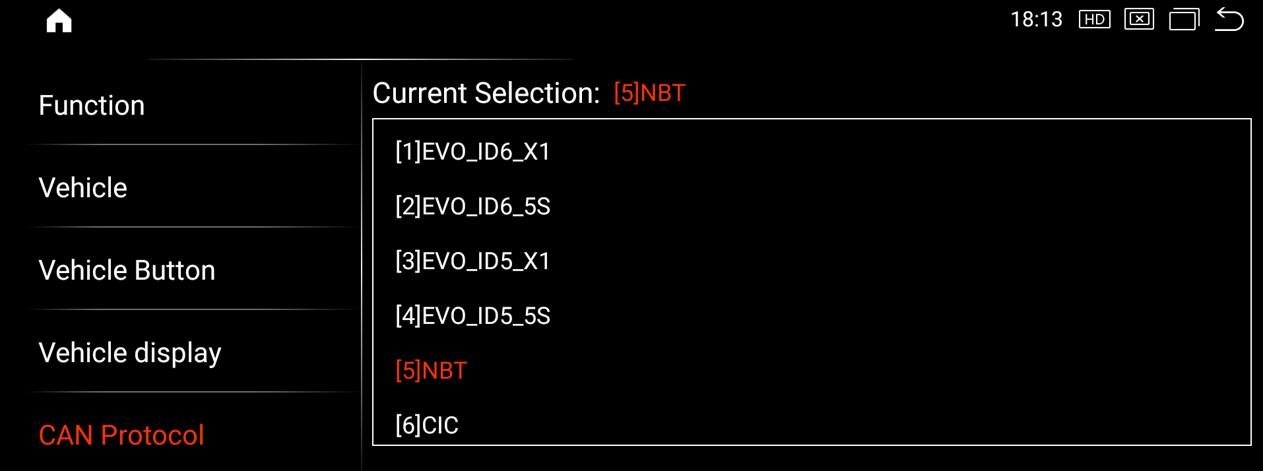
5.If it flickers or does not display the original BMW system correctly, it may be caused by a screen configuration issue. Please do the following checks:
5.1.Enter Android factory mode to set the original car display, please select the car type one by one according to the original radio system, such as CCC, CIC, NBT, EVO, etc., until the original car interface display is normal
For NBT models, select the “Car Display” option with the prefix “NBT” (some 12-year NBT models may need to select the “Car Display” option with the prefix “CIC”)
For CIC system models, select the “Car Display” option with the prefix “CIC”
For CCC system models, select the “Car Display” option with the prefix “CCC”
For EVO system models, Please select item 18-22.
Routes:SETTINGS-FACTORY (Password: 2018)-Car Display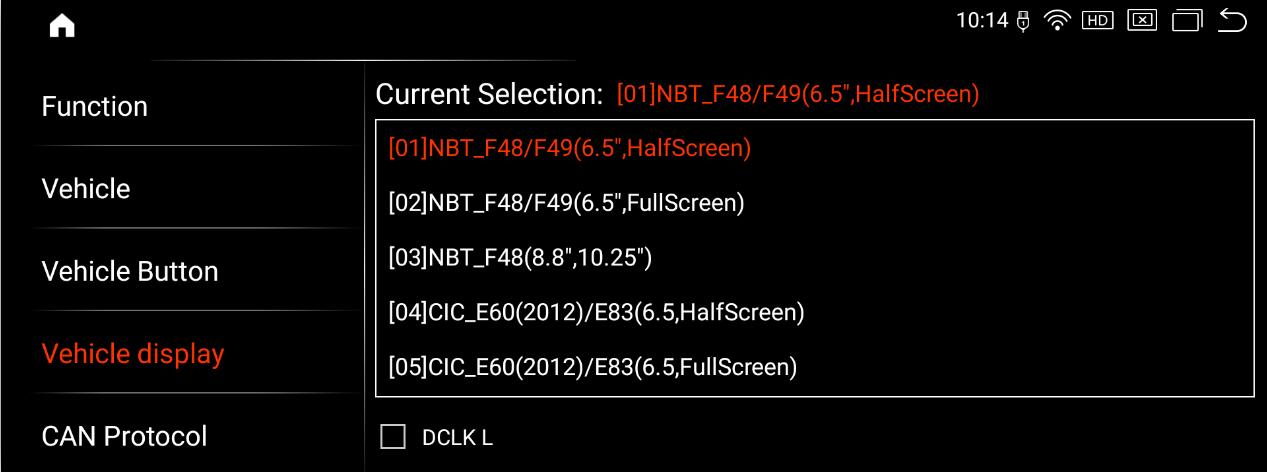
Post time: Dec-22-2025